Estimated Reading Time: 3 minutes (573 words)
Primary Audience: Classroom Teachers
Taking conferring notes shouldn’t feel harder than the conference itself, but for me, I’m often left wondering…
- “How can I reach every student?” as I sit beside the same striving writer I’ve met with the last three days.
- “How do I record what we talked about in a way that’s fast and useful?” as I pause mid-conversation to scribble notes.
- “How do I actually use those notes later instead of letting them pile up?” as I flip through a crowded notebook full of half-finished thoughts.
Every year, I try something a bit different. A few years ago, I had a collaborative binder that I shared with my teaching assistant. Last year, I had a little notebook with a student checklist on the first page. I’d write the date next to each student on the day I conferred with them. Within the pages of the notebook, I had a page dedicated to each student where I wrote notes and next steps.
This year, I am trying to go digital with a Google Form. Here’s how it works.
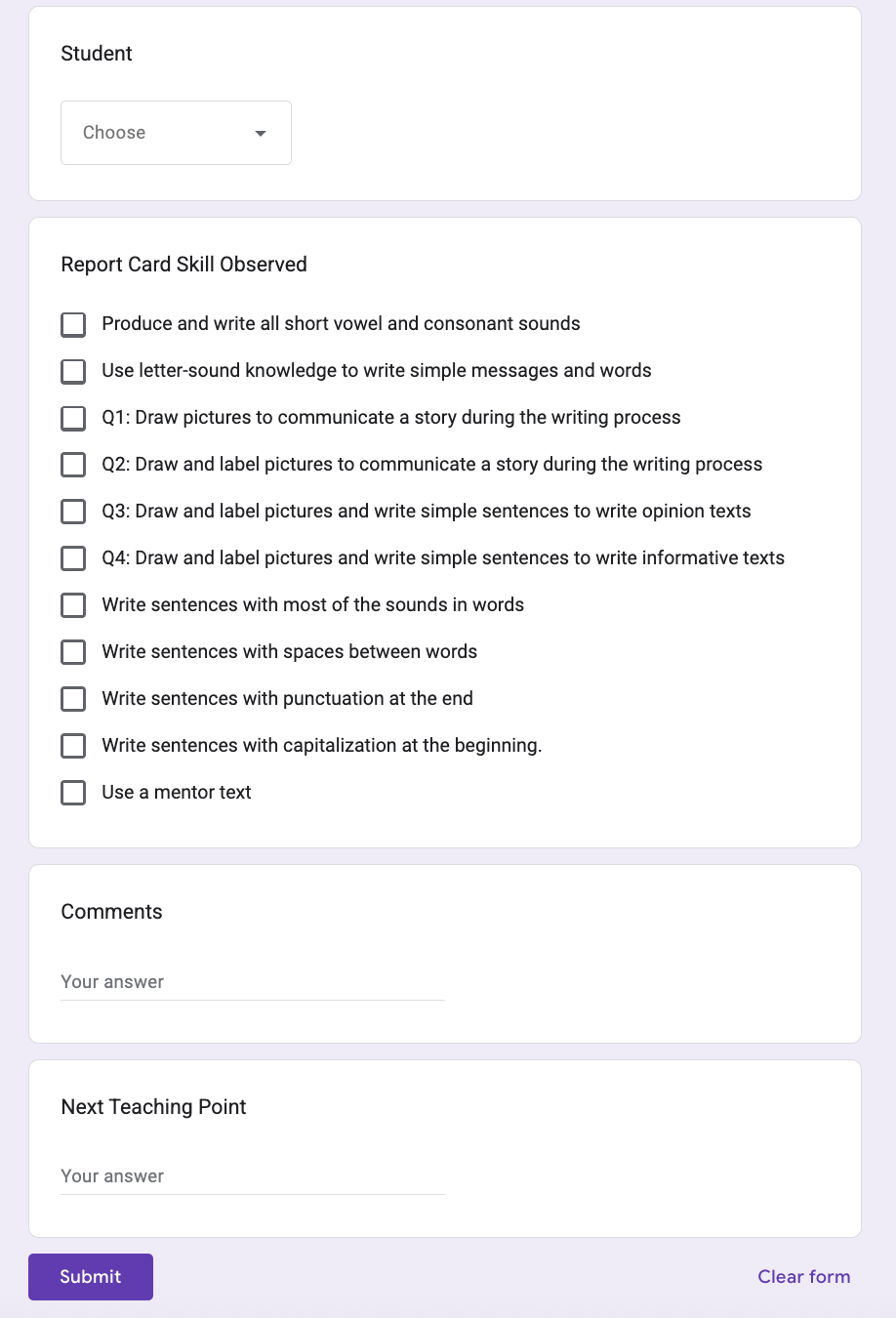
- Add every student’s name into a dropdown list. This way, you can select the student instead of typing their name each time.
- Consider the writing skills you’d like to prioritize as checkboxes. I thought it might be handy to use skills right off my report card, but you may use a different rubric or checklist. You could even change the checkboxes based on your unit or genre.
- Make sure to include space for narrative comments (sometimes called Glows and Grows). Be sure there’s space to note your next teaching point.
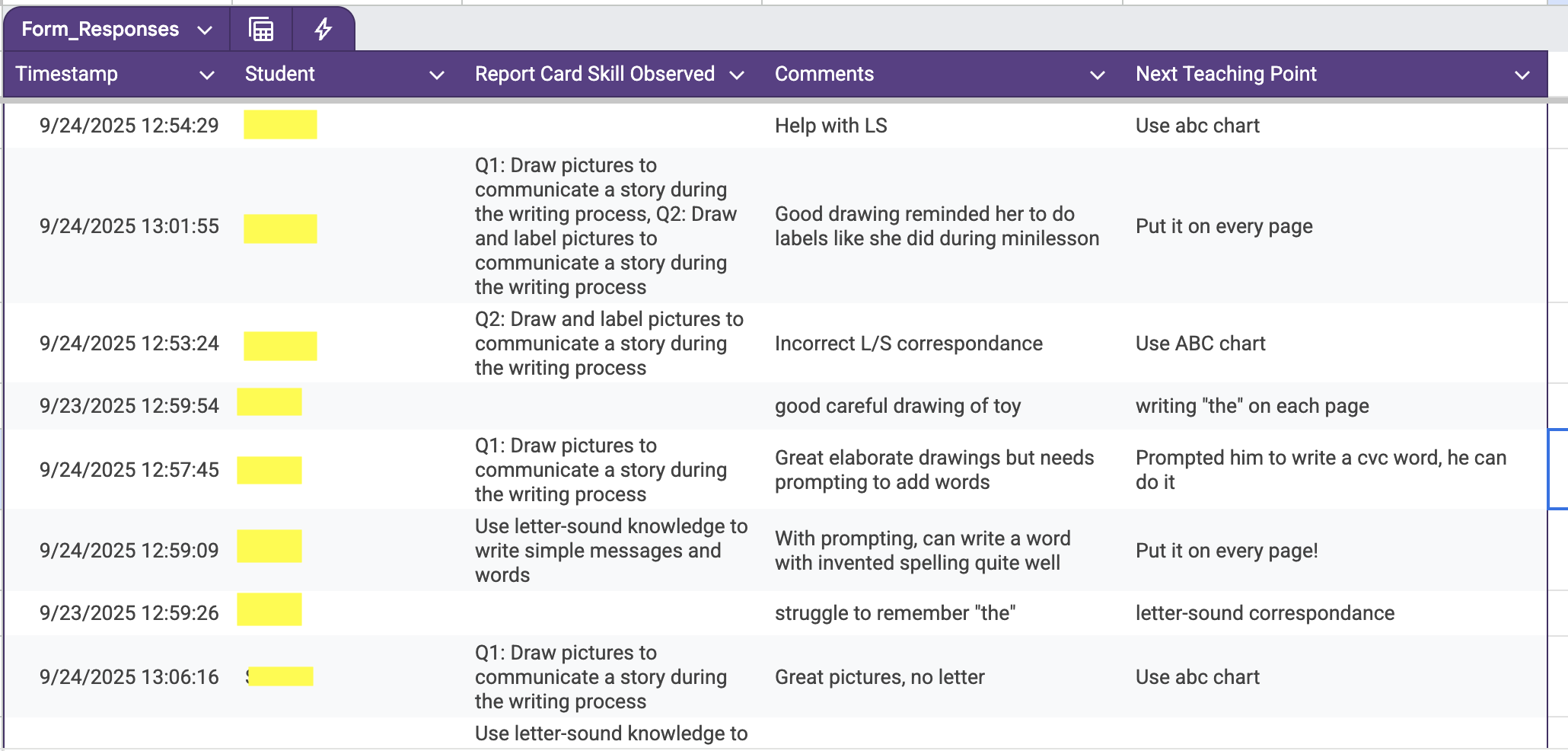
Click “View in Sheets” to see all your responses in a spreadsheet. I use the “Sort by” tool to guide instructional decision-making. When I sort by student name, all my notes about each writer are in one place. I can also sort by skill or by next teaching point to quickly identify patterns and form small groups.
Each Google Form response automatically includes a date stamp, which helps me ensure I meet with every student regularly. (Tracking dates also keeps me from over-conferencing with my neediest students, which supports their independence.) Here’s what my spreadsheet looks like, with student names covered for privacy.
Putting it into Practice
I have to carry my laptop or iPad around the classroom, but since I type faster than I write, it’s worth it. The dropdowns and checkboxes make note-taking quick and consistent.
I keep two tabs open when I confer with a student: the actual form and the spreadsheet with notes. This allows me to check what a student and I chatted about last time and reminds me of my next teaching point. Using the search feature of the spreadsheet is much faster than flipping through my notebook to find the page about a certain student. Bonus: If you have coteachers in the room during writing workshop, other adults can use the form too. Consider adding a checkbox to record which teacher took the notes.
Overall, I think this is much faster and more organized. The best part is I can update and edit the Google Form as needed throughout the year. Would you give this a try? Comment below how you tackle conferring notes in your class! And remember, whether you go digital or stick to paper, finding a system that lets you focus more on students and less on note-taking makes all the difference.
Discover more from TWO WRITING TEACHERS
Subscribe to get the latest posts sent to your email.


Genius! Not only will this keep conferences on point in a manner that helps to document progress for reporting, but it has potential for clearly sharing progress with the writers. Photos will be invaluable to illustrate progress with student writers : “ Once you wrote like this, but now you write this way. “ it can also be a vehicle for writers to self identify progress: (looking at two samples) What do you notice that is different? What a powerful tool to increase a writer’s confidence and agency! Well done!
LikeLike
I love this, Leah! I’ve also had good experiences with Google Forms as a note-keeping tool; I recently learned that you can even attach images to each response, which could help capture writing samples.
Thanks for this post; I will share it with my teachers as I KNOW they will find it incredibly helpful!
LikeLike
Adding photos is brilliant! Thank you for the idea! I’m editing my form now 🙂
LikeLike